


PDF Toolbox
4.415.00 Reviews
App Specs
- Version
- 1.0.9
- Updated On
- License
- Free
- Downloads
- 500,000+
- Developer
- wydevteam
- Categories
- Productivity
- Platform
- Android
Screenshots
 Analysis by AppCompare
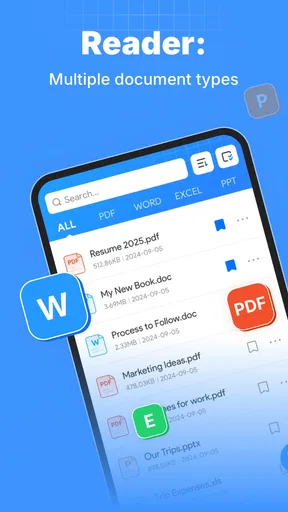
PDF Toolbox is the kind of productivity app I reach for when a document needs more than simply opening. Its purpose is straightforward: make PDFs easier to read, scan, and annotate without turning a quick task into a full desktop publishing project. After using it as a lightweight document companion, I found its strongest appeal in everyday handling rather than in ambitious document management.
The app is free, carries an Everyone age rating, and comes from wydevteam. That combination makes it easy to try without committing money first. It is also a relatively new option, released on August 29, 2025, with version 1.0.9 currently available. Those details matter because the experience feels more like a focused toolbox than a mature, all-purpose office suite: useful for common PDF jobs, but best judged by how well it fits your particular routine.
How PDF Toolbox fits into everyday document work
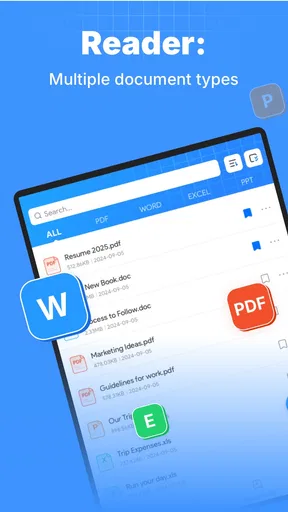
PDFs are often awkward precisely because they are meant to preserve a document’s appearance. A page may look perfect but still be inconvenient to inspect, mark up, or navigate on a phone. PDF Toolbox addresses that practical problem. Instead of treating a PDF as a static file that you only read, it presents it as something you can work through more actively.
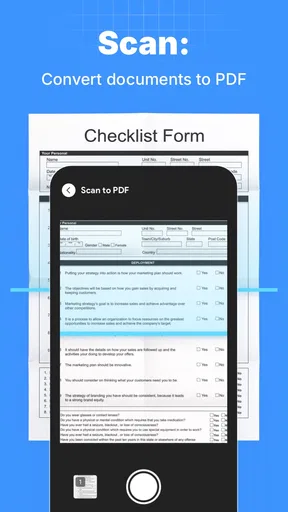
In my experience, the most useful mindset is to open the app with a specific task in mind. I would use it for checking a form before sending it, reviewing a set of instructions, marking important passages in study material, or scanning a document for a detail that is easy to miss in a long page. That focus keeps the app from feeling unnecessarily complicated.
The store summary describes the experience as easier reading, scanning, and annotation, and that is a more accurate description than calling it a complete office replacement. I would not choose it as my main writing environment. I would choose it when the PDF already exists and I need to understand, inspect, or mark that file efficiently.
Its Android compatibility begins with version 7.0, so it can serve people using older devices as well as those with newer phones. That broad starting point is helpful for a family member, student, or work phone that is not running the latest operating system. The app has also passed the half-million-install mark, while its average rating sits at 4.4 from roughly 4.9 thousand ratings. I read that as encouraging interest and generally positive reception, but not as a reason to overlook whether its workflow suits you.
What the free access changes
The most important value point is simple: PDF Toolbox is free. That makes the decision less about calculating whether a subscription pays for itself and more about deciding whether the app saves enough time to deserve a place on your device. For occasional PDF work, free access is especially attractive because many people do not need a document tool every day.
Worth Reading Before You Choose

EA SPORTS FC Mobile 26 Is a Bigger Football Game, but It Takes Time

Flipboard Shows What News Apps Must Do Beyond the Feed

Switching to Android Auto Means Rethinking Your Driving Routine

Google Calendar Makes a Crowded Week Easier to Manage

Ludo King Makes the Most of the Minutes Between Plans

Baby Panda World Brings Quick Play to Modern Phones, but Its Game Library Feels Busy
I like this model for situations where the alternative is searching for a temporary web service, installing a heavyweight editor, or trying to manage annotations inside a general file viewer. A free mobile toolbox can be worthwhile even when it is not the most advanced option, provided it handles the short tasks that tend to interrupt a normal day.
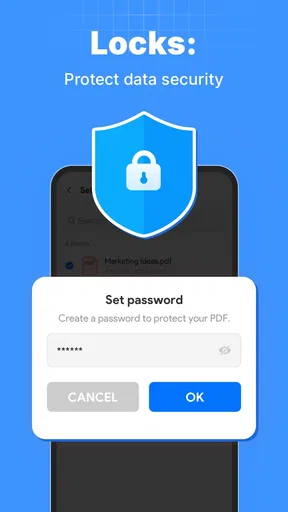
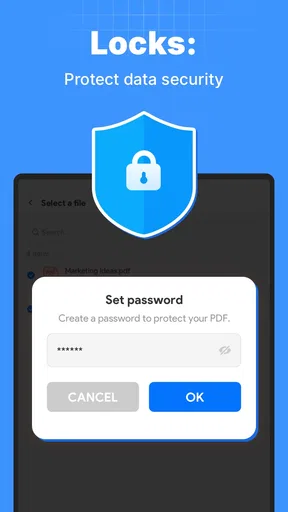
There is also a practical privacy and convenience angle to consider without making assumptions about how the app handles files. Opening a document in a dedicated app may feel more controlled than repeatedly moving it between unrelated services, but I would still read the app’s current permissions and privacy information before using it for confidential work. Free does not automatically mean suitable for sensitive contracts, personal records, or company documents.
The free price also changes who should skip it. If you already pay for a professional PDF editor and regularly use its full editing, signing, conversion, or collaboration workflow, installing another reader may add clutter rather than value. PDF Toolbox makes more sense when you want a focused, no-cost option, not when you are trying to replace an established professional system.
Where the app delivers practical value
The strongest benefit is reduced friction. A PDF task often begins with a small question: Which paragraph contains the requirement? Where is the number I need? Which section should I remember? Reading and scanning tools are valuable because they shorten the path from opening the file to finding the answer.
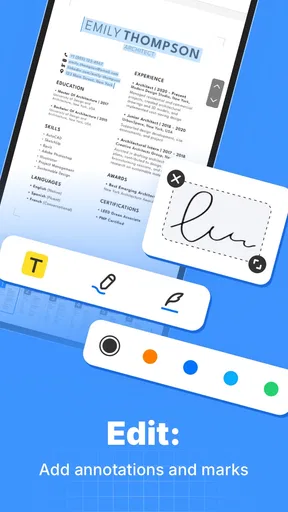
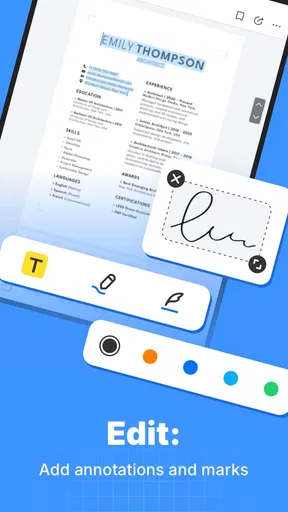
Annotation adds a second layer of usefulness. I do not see marking a PDF as merely highlighting for its own sake. A good annotation habit lets me separate facts I need to act on from background material I only need to understand. For example, while reviewing a rental document, I might mark the date-related passage, note a question beside an unclear clause, and then return later with a much clearer checklist.
That workflow is more useful than highlighting every sentence. My first concrete tip is to annotate with a purpose: one visual mark for action items, another for questions, and no mark for ordinary context. The app becomes more valuable when annotations help you make a decision later instead of simply decorating the page during the first read.
A second useful approach is to scan in passes. On the first pass, I look for headings, repeated terms, and pages that deserve attention. On the second, I read those pages carefully and annotate only what changes my understanding or next step. This is particularly practical on a phone, where trying to read every line continuously can be tiring.
PDF Toolbox can also fit a study routine. I would use it to review a lecture handout or reference document, mark definitions, and leave short reminders beside sections that need another look. The trade-off is that a dedicated note-taking app may still be better for building a connected knowledge base across many documents. PDF Toolbox is strongest when the PDF remains the center of the task.
A realistic day-to-day scenario
Imagine receiving a multi-page application form by email while away from a computer. I would open it in PDF Toolbox, scan the pages for required information, annotate the fields that need supporting documents, and mark any instruction that could cause the form to be rejected. Instead of reading from the first page to the last without a plan, I would create a short visual route through the document.
Later, when I have the supporting files ready, those marks give me a quick reminder of what remains. This is where annotation has real value: it turns a passive document into a temporary task list. After the form is submitted, those marks may no longer matter, but they helped me avoid repeatedly searching the same pages.
For a student, the equivalent might be a long reading packet. For a small business owner, it could be a supplier document. For a parent, it might be school instructions that contain dates, materials, and exceptions in different sections. The app’s usefulness comes from reducing repeated searching, not from making any of these documents magically shorter.
Small workflow insights that are easy to miss
One non-obvious strength of a focused PDF tool is that it encourages separation between reading and editing. When I use a general office app, I may become distracted by formatting controls or unrelated document options. A PDF-centered workflow keeps attention on the page. That matters when the goal is checking information rather than producing a polished file.
Another insight is that annotations can serve as a handoff between two moments. I might read a document in the evening, mark the questions I need to ask, and deal with them the next morning. The marks preserve my train of thought better than relying on memory. This is especially useful for documents that are important but not urgent enough to finish in one sitting.
A third trade-off is that scanning and annotation are not the same as understanding. A document can be easy to search visually and still contain confusing wording, exceptions, or obligations. I would never treat a highlight as proof that I have interpreted a contract correctly. The app can help organize attention, but it cannot replace careful reading or professional advice where that is appropriate.
I also recommend keeping annotations sparse. If every page is covered in marks, the visual hierarchy disappears. Marking only deadlines, decisions, definitions, and follow-up questions makes the document easier to revisit. This is a user habit rather than a special feature, but it has a major effect on whether the app feels helpful after the first session.
How it compares with familiar alternatives
The usual alternative is the PDF viewer already installed on a phone. That option wins when I only need to open a file once, read a short page, or share it immediately. There is no reason to add a separate tool for a document that requires no scanning or annotation. PDF Toolbox earns its place when the built-in viewer feels too basic for repeated review.
Another alternative is a full office or professional PDF suite. Those products are generally better for complex document production, advanced editing, business workflows, and broader file management. If I need to make substantial changes to the original layout or coordinate documents across a larger process, I would favor that kind of software. The cost, complexity, or account requirements of such tools can be unnecessary for simple review work, however.
Web-based PDF services are useful when I am at a computer and need a one-off operation. They can be convenient, but they also introduce the extra steps of uploading a file, waiting for processing, and downloading the result. For a document I simply want to inspect and mark on my phone, a dedicated app feels more direct. I would still be cautious with confidential files and check the service involved before sending them anywhere.
Note-taking apps are better when the document is only one source among many. They can connect ideas, organize projects, and preserve broader context. PDF Toolbox has a narrower advantage: the page itself remains visible while I work through it. That makes it preferable for document-centered review, but less compelling as a replacement for a complete personal knowledge system.
Where the experience may fall short
The focused design that makes PDF Toolbox approachable can also limit its appeal. People who expect one app to handle every part of a document lifecycle may find it insufficient. A PDF toolbox is not automatically a word processor, cloud workspace, scanner replacement, or team collaboration platform. I would avoid assuming that a simple reading and annotation workflow covers those separate needs.
Phone screens create another natural limitation. Even with a helpful viewer, dense tables, legal clauses, and wide pages are easier to inspect on a tablet or computer. I use a mobile PDF app for triage, quick review, and targeted notes, but I prefer a larger screen when accuracy depends on comparing columns or checking fine print.
There is also a risk of creating a false sense of completion. Marking a document can feel productive even when the important action is still waiting: sending an email, collecting a signature, asking a question, or submitting a form. My advice is to finish every annotation session by identifying the next real-world action. Otherwise, the app can become a place where tasks are highlighted but not completed.
Because the app is still early in its release history, I would keep expectations measured. Version 1.0.9 suggests an actively developing product rather than a long-established document platform. That is not a criticism by itself, but users who depend on highly specialized PDF workflows should test their most important files before making it central to their process.
Who will get the most value
I think PDF Toolbox is a good fit for students, casual document reviewers, families handling school or administrative paperwork, and small teams that need a simple way to inspect PDFs on Android. It is also suitable for people who want to try a dedicated annotation workflow without paying first.
It is particularly useful for readers who often say, “I saw that somewhere in the document,” but then have trouble finding it again. Scanning gives the review process structure, while annotations preserve the places that deserve another look. The app is less about producing documents and more about making existing documents manageable.
I would also recommend it to someone moving away from an overly complicated PDF suite. If your regular needs are reading, locating relevant passages, and leaving reminders, a smaller tool may be easier to live with. The free price removes much of the risk of testing that change.
On the other hand, I would skip it if your work depends on advanced editing, formal document approval, extensive collaboration, or a large archive that must be managed across several devices and users. I would also skip it if you only open a PDF once every few months and your current viewer already handles that job. In that case, another installation is unlikely to improve your routine.
My final recommendation
PDF Toolbox is worth trying when you want a free, focused way to read, scan, and annotate documents on Android. I appreciate that its value is easy to understand: it helps turn a PDF from something I merely view into something I can inspect and work through. The app is most convincing in short, practical sessions where finding information and remembering follow-up points matter.
My recommendation comes with a clear boundary. I would not treat it as a full replacement for a professional PDF suite, a connected note system, or a desktop screen. Its best role is the middle ground between a basic viewer and an oversized office package. If that is the gap in your current setup, PDF Toolbox is a sensible free addition.
With its Everyone rating, support beginning at Android 7.0, and current version 1.0.9, it is accessible to a broad range of Android users. The 4.4 average and more than half a million installs suggest that many people find the approach useful, while the app’s focused nature makes the final decision personal. I would install it for document review, keep annotations deliberate, and choose a more advanced alternative only when the work goes beyond reading, scanning, and marking pages.
For me, that is the right verdict: try it when your PDF problem is friction, not complexity. It delivers meaningful value without a purchase, but its value comes from a specific workflow. When you need a calm, practical way to work through an existing document, it can be exactly enough; when you need to rebuild or manage an entire document operation, it is not the tool I would rely on.
Pros
- Combines PDF editing
- conversion
- merging
- and splitting in one app.
- Supports quick document scanning and PDF creation from camera images.
- Useful page tools make rearranging or extracting PDF pages straightforward.
- Can reduce file size when sharing documents with limited storage or bandwidth.
- Simple interface helps occasional users complete common PDF tasks quickly.
Cons
- Some advanced tools may require a premium subscription or separate payment.
- OCR accuracy can vary with poor lighting
- unusual fonts
- or handwritten content.
- Large files may take noticeable time to process on older mobile devices.
- Privacy depends on how uploaded documents are handled during online processing.
- Editing options may feel limited compared with full desktop PDF software.
FAQs for PDF Toolbox
What is PDF Toolbox and what can I do with it?
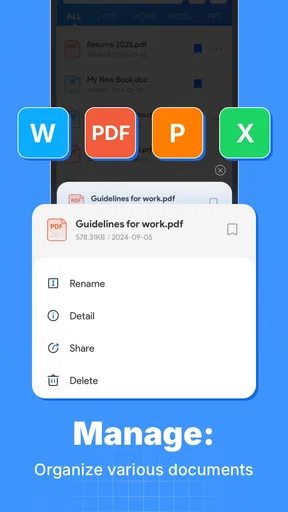
PDF Toolbox is a mobile utility designed to help you manage and work with PDF documents from your Android or iOS device. Depending on the available tools in your version, you can typically use it to view, merge, split, compress, convert, rotate, or organize PDF files. It is useful for students, office workers, and anyone who needs basic document management without opening a computer.
Is PDF Toolbox free to download and use?
PDF Toolbox may be available as a free download, but some features can be limited by advertisements, usage restrictions, or a premium subscription. Before downloading, check the app store listing carefully for in-app purchases and subscription details. If you only need occasional PDF viewing or simple file organization, the free tools may be enough, while advanced editing or conversion options could require payment.
Can PDF Toolbox edit text, images, or pages inside a PDF?
PDF Toolbox is primarily intended for practical PDF management, but the exact editing capabilities depend on the version installed and the operating system. Basic functions may include rearranging, deleting, rotating, merging, or splitting pages. More advanced changes, such as directly editing existing text, replacing images, or adding detailed annotations, may be limited compared with a full desktop PDF editor.
Is it safe to use PDF Toolbox with private or confidential documents?
You should review PDF Toolbox’s privacy policy and permission requests before importing sensitive files. Some operations may happen locally on your device, while other features, such as online conversion or compression, may require documents to be uploaded to a server. Avoid processing highly confidential material unless you understand how files are handled, stored, and deleted, and always download the app from an official store.
What file-sharing and storage options does PDF Toolbox support?
PDF Toolbox generally works with PDFs saved on your device or accessed through common file-management and cloud-storage services, although the available integrations can vary by platform. After processing a document, you may be able to save it locally or share it through email, messaging apps, or other installed services. Check the sharing menu on your device because supported destinations can differ between Android and iOS.


